
How to Speed Up Your WordPress Site with Image Optimization

If your WordPress website feels slow, there is a good chance that images are the main reason. Big hero banners, uncompressed photos from phones, and oversized thumbnails quietly add megabytes to every page. The result: frustrated visitors, poor Core Web Vitals, and SEO rankings that never reach their full potential.
The good news is that you do not need to be a developer to fix this. With the right approach, you can reduce image weight dramatically without making your site look worse. In this guide, we will go through a clear, WordPress-focused workflow to speed up your website using smart image optimization.
Why images slow down WordPress sites
Out of the box, WordPress does a few things right: it creates different image sizes, supports responsive loading, and lazy loads below-the-fold content. But it cannot magically fix images that start out too large or are saved in inefficient formats.
Common problems on real-world WordPress sites include:
- Uploading 4000px-wide photos directly from a camera or phone.
- Using PNG for everything, even full-screen photos where JPG or WebP would be much smaller.
- Hero sliders that load multiple large images before the user sees any content.
- No compression at all images are saved at 100% quality with heavy metadata.
Fixing these issues usually cuts page weight by 40–80%, which can shave seconds off load time on slower connections.
Step 1: Choose the right image formats
For the web in 2026, the default recommendation is simple: use WebP wherever possible. It keeps visual quality high while reducing file size compared to JPG and PNG.
- WebP Best general-purpose format for most photos and illustrations.
- JPG Still fine for older browsers or email newsletters.
- PNG Use when you truly need transparency or pixel-perfect UI elements.
You can convert your existing assets to WebP before upload using tools like ImagePulser and ImageDocker, or use a WordPress plugin that automatically generates WebP versions on the server.
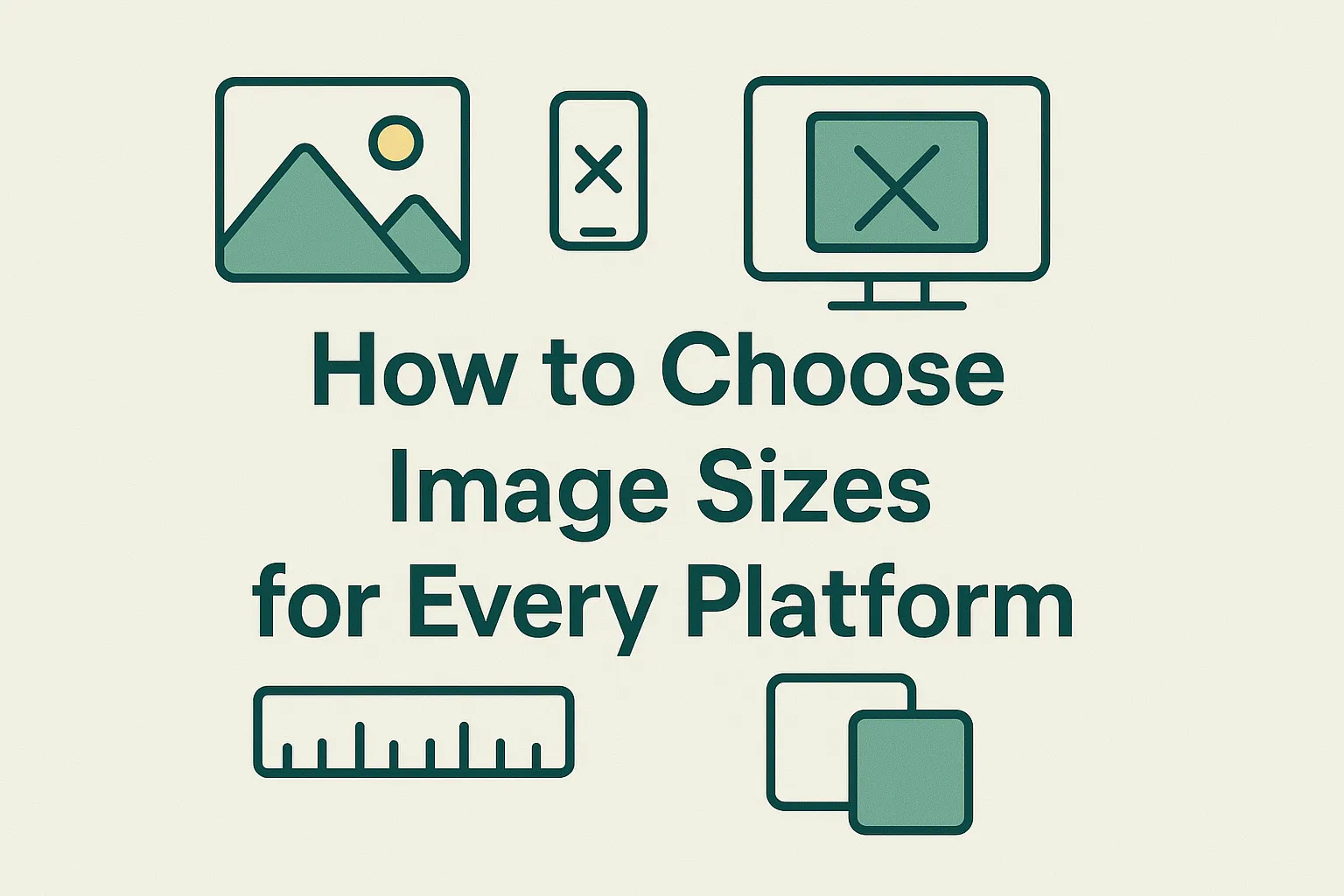
Step 2: Resize images before you upload them
WordPress can generate multiple sizes, but you should still avoid uploading gigantic originals. Ask yourself: How wide does this image need to be on the front-end?
As a practical rule of thumb:
- Blog hero images: 1300–1600px wide.
- In-content images: 1000–1200px wide.
- Thumbnails and cards: 400–600px wide.
- Full-width homepage banners: 1600–2000px wide.
Use an editor or an online tool to resize the image before uploading. This alone can cut file size in half.
Step 3: Compress images intelligently
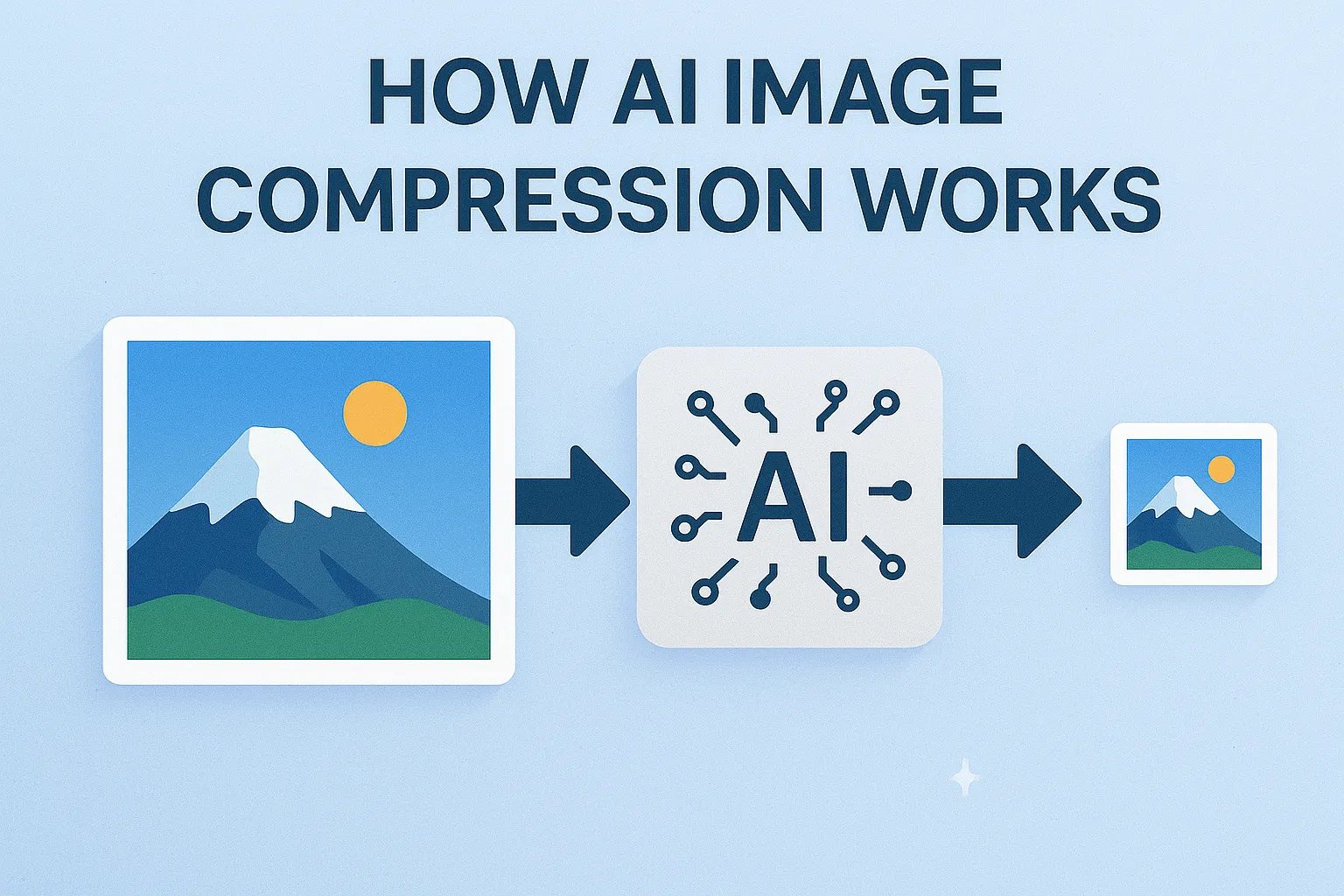
Compression is where most of the magic happens. Instead of relying on default exports from Photoshop or a random phone app, use tools built specifically for web compression.
There are two main approaches:
- Pre-compress before upload. Use an external tool like ImagePulser to convert and compress images to WebP, then upload those optimized versions to your media library.
- Use a WordPress plugin. Popular plugins can automatically compress images on upload and even bulk optimize existing media items.
The ideal setting is where your images look the same to the human eye but weigh significantly less usually around 70–85% quality for WebP or JPG.
Step 4: Enable lazy loading and responsive images
WordPress now includes native lazy loading, which means images below the fold are only loaded when the user scrolls towards them. Make sure this feature is enabled and not overwritten by a poorly configured theme or plugin.
For responsive images, WordPress automatically adds srcset attributes so browsers can choose the appropriate size. You get the most benefit from this when your original uploads are reasonable and you avoid manually hard-coding image tags in custom HTML blocks.
Step 5: Clean up heavy sections like sliders and galleries
Even perfectly optimized individual images can still feel slow when you load too many of them at once. This is especially true for homepage hero sliders and dense galleries.
- Replace auto-playing sliders with a single strong hero image and clear call-to-action.
- Limit the number of images initially visible in galleries; load more dynamically if needed.
- Use thumbnails instead of full-size images in grids or archives.
Often, simplifying the design improves usability and speed at the same time.
Step 6: Test, measure and iterate
Once you have optimized your images, run your key pages through tools like PageSpeed Insights or Lighthouse. Pay attention to metrics such as Largest Contentful Paint (LCP) and total page weight. If your main hero image is still the bottleneck, you can experiment with slightly lower quality settings or smaller dimensions.
It is also useful to test on a real mobile device over a normal 4G connection. If your pages feel fast there, you are on the right track.
Final thoughts
You do not need complicated caching setups or expensive hosting plans to make a WordPress site feel fast. In many cases, simply getting images under control delivers the biggest improvement. By choosing the right formats, resizing before upload, compressing intelligently and cleaning up heavy layouts, you can dramatically speed up your site while keeping it beautiful.
Start with a few key pages your homepage, top blog posts and main product or service pages. Optimize every image on those URLs, measure the difference and then roll the process out to the rest of your site. The benefits will compound over time in better SEO, happier visitors and a smoother WordPress experience.
Comments (0)
No comments yet. Be the first to share your thoughts!
Leave a Comment